

If you’re planning to use SQL Developer on macOS, you need to ensure that Java is correctly installed and configured, as SQL Developer relies heavily on it. Whether you’re a beginner or someone handling complex Oracle database tasks, having Java and SQL Developer set up correctly on your Mac is essential. If you’re unsure about the technical steps or configurations, you can hire an expert SQL developer from Kindred Technology to assist you through the process seamlessly and professionally.
What is SQL Developer & Why Java is Needed to Run It on macOS
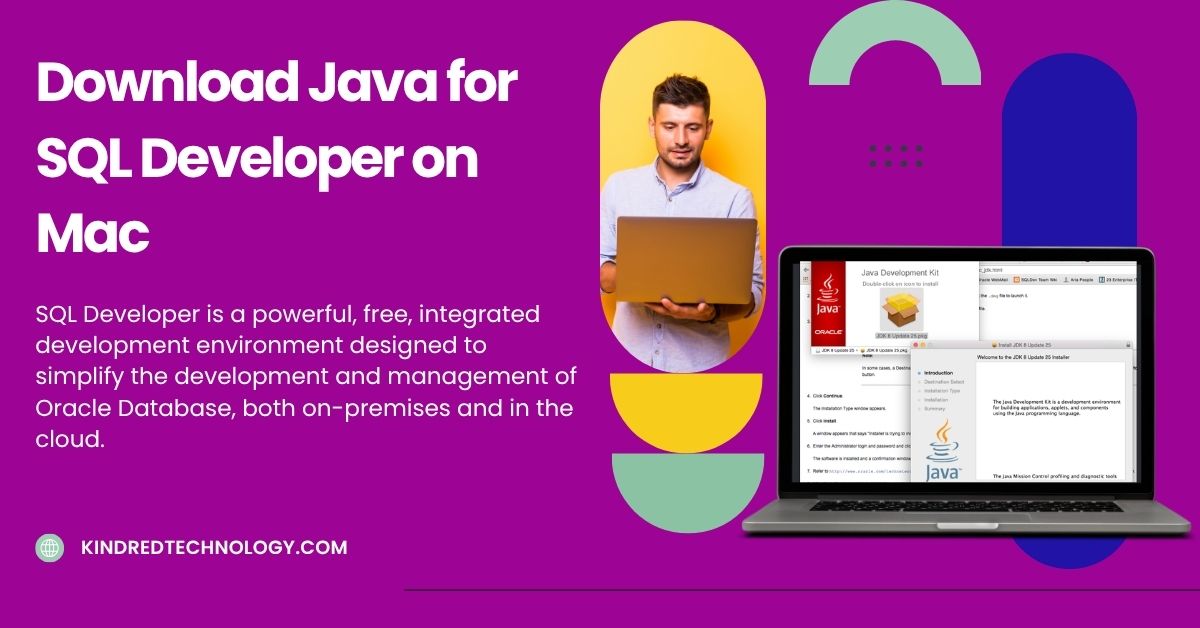
SQL Developer is a powerful, free, integrated development environment designed to simplify the development and management of Oracle Database, both on-premises and in the cloud. It offers:
- End-to-end development for PL/SQL applications
- Worksheet for executing SQL queries and scripts
- DBA tools to manage database settings
- Integrated reporting features
- Data modeling capabilities
- Tools for migrating 3rd-party databases to Oracle
Why Java? SQL Developer is a Java-based application. This means it requires the Java Runtime Environment (JRE) to function on any system, including macOS. Java acts as the underlying engine that allows SQL Developer to run and interact with your system’s resources.
Java Versions Compatible with SQL Developer
- Java 8: The most stable and widely used version, offering strong performance.
- Java 11: Supported in newer versions of SQL Developer and includes updated security features.
- Java 17 (LTS): Latest long-term support version, recommended for long-term stability.
- Oracle JDK or OpenJDK: SQL Developer works well with both. Choose depending on your preference or system requirements.
System Requirements for SQL Developer
Before you begin, make sure your system meets the requirements to install and run SQL Developer efficiently:
- Processor: Intel or AMD multi-core (Core i3 or higher recommended)
- RAM: 4 GB minimum (2 GB may work for small projects)
- Disk Space: At least 500 MB for SQL Developer installation and additional space for databases and scripts
- Operating Systems Supported:
- macOS 10.13 or later
- Linux (Ubuntu, CentOS – 64-bit)
- Java: Java 8 or later; either Oracle JDK or OpenJDK
Steps to Download Java from the Official Oracle Website
Follow these steps to download and install Java on macOS safely:
- Go to Oracle JDK’s official download page
- Scroll to the macOS section.
- Download the latest version of the Java Development Kit (JDK) – avoid downloading just the JRE.
- Accept the license agreement.
- Download the .dmg installer file
- Once downloaded, open the .dmg file and begin installation
Installing Java on macOS
After downloading the JDK installer:
- Double-click the downloaded .dmg file to mount the disk image
- Run the .pkg installer from the mounted disk.
- Click Continue, then Agree to the license agreement.
- Choose installation location (default is recommended)
- Click Install and enter your macOS admin password if prompted.
- Once completed, click Close to finish.
Verify Java Installation
To check if Java was successfully installed:
- Open Terminal
- Type: Java -version
- If successful, you’ll see the version number displayed
Download SQL Developer on macOS.
To get started with SQL Developer:
- Visit the Oracle SQL Developer download page
- Scroll down to the SQL Developer section.
- Select the macOS version and download the .dmg file.
You’ll typically see two download options:
- SQL Developer with JDK: Best for users who haven’t installed Java yet
- SQL Developer without JDK: Choose this if Java is already installed on your Mac
Click download, accept the license agreement, and save the .dmg file.
Installing SQL Developer on macOS
Once the download is complete:
- Open the .dmg file
- A new window will appear showing the SQL Developer application.
- Drag and drop the SQL Developer icon into your Applications folder.
- Eject the disk image after installation.
Configure Java Location in SQL Developer
When you launch SQL Developer for the first time, you may be asked to specify the path to your Java JDK. Here’s how:
- Click Browse in the pop-up
- Navigate to:
/Library/Java/JavaVirtualMachines/jdk-<version>.jdk/Contents/Home
- Select the Home folder and click Open.
After this step, SQL Developer should launch successfully.
To Sum UP
Setting up SQL Developer on macOS requires downloading and installing both Java and SQL Developer itself. While the process isn’t too complex, beginners may find some steps, like choosing the correct Java version or locating the JDK path, slightly tricky.
Here’s a quick reference for essential downloads:
If any part of this guide feels overwhelming or if you’re working with complex database systems, don’t hesitate to hire an expert SQL developer from Kindred Technology. Their certified professionals can help you configure your environment, manage databases, write PL/SQL queries, and optimize your development workflows efficiently.